
How can create a User in Oracle Apps R12 or How Can Assign a Responsibility to a User


How can create a User in Oracle Apps R12 
or 
How Can Assign a Responsibility to a User 


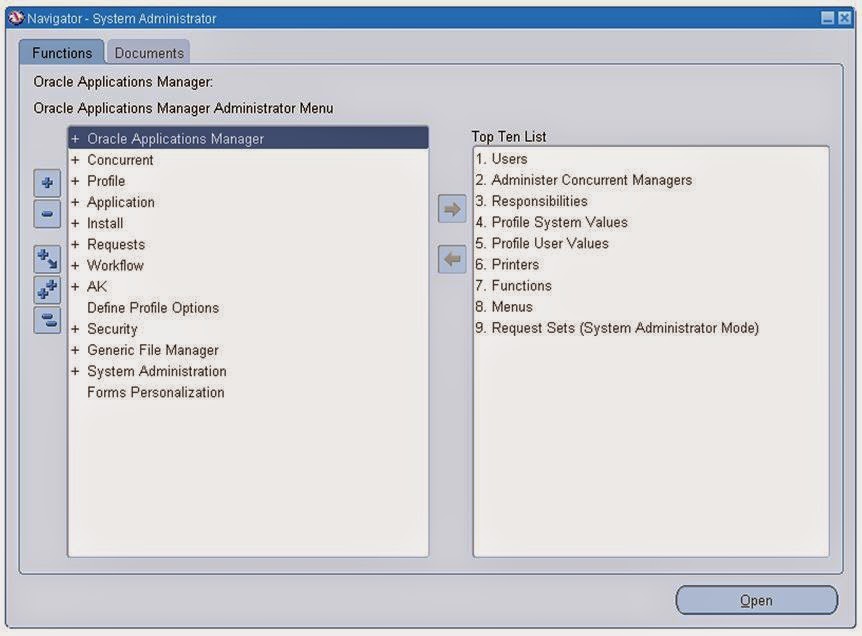
1) Go to "System Administrator" > Security  > User > Define 


2) Username -: As per User Number 

    Password - : Fill the password and press Enter then type again same password .

    Responsibility-: Select Responsibility from LOV whatever you want to Assign to user . 


Note-: If you will Assign System Administrator Responsibility to the User then a Indirect Responsibility Application Diagnostic will assign automatically to user .


3) Now Save the form .

Now your User Created .

4) Go to User Login form of Oracle Apps ERP


5) Login with your User Credential.


6) Change Your Current Password 

Note -: It will ask to change the password at the time of first login .


Save the New Password 


Select Responsibility


Click on Any form and check  

Now Your User are ready to do our Responsibility . 


For More Information Visit on www.OracleAppsGuide.com Or Subscribe your email-id on OracleAppsGuide

Comments

  1. It's really helpful for me. Thanks Kuldeep Sir.

    ReplyDelete
  2. This comment has been removed by a blog administrator.

    ReplyDelete
  3. You have beaten yourself this time, and I appreciate you and hopping for some more informative posts in future. Thank you for sharing great information to us. veja como baixar Appvn apk atualizado 2020

    ReplyDelete
    Replies
    1. Thanks Muhammad Hassan, I shall share my all knowledge.

      Delete
  4. Cool stuff you have got and you keep update all of us. como baixar HappyMod download 2020

    ReplyDelete
  5. It is fairly the inventive methodology of these portable applications that has overwhelmed the innovative world. Brighter Guide homepage

    ReplyDelete
  6. I know this is one of the most meaningful information for me. And I'm animated reading your article. But should remark on some general things, the website style is perfect; the articles are great. Thanks for the ton of tangible and attainable help. dotcom secrets

    ReplyDelete
  7. Di solito ci sono alcuni siti di tesi che fanno uso del sito web ogni volta che si sviluppa in un semplice inglese riportati nel sito. come bloccare le chiamate

    ReplyDelete
  8. Thanks for your Valuable words. It means a lot to share the knowledge with readers.

    ReplyDelete
  9. WhatsApp Group Links
    I have read a few of the articles on your website now, and I really like your style.
    WhatsApp Group Links

    ReplyDelete

Post a Comment

Popular posts from this blog

Example of $FLEX$ Syntax Used In Value Set

Example of $FLEX$ Syntax Used In Value Set ($flex$ in oracle apps) Example of using “ :$FLEX$.Value_Set_Name” to set up value sets where one segment depends on a prior segment that itself depends on a prior segment. Suppose you have a three-segment flexfield where the first segment is Country , the second segment is State , and the third segment is District . You could limit your third segment's values to only include Districts that are available for the Address specified in the first two segments. Your three value sets might be defined as follows:  Segment Name               Country_Segment Value Set Name              Country_Value_Set Validation Table              Country_Table Value Column                Country_NAME Description Column    ...

Pending Receiving Transactions (Resolving Period Close Pending Transaction R12 or Inventory Closing Steps in Oracle Apps R12)

Pending Receiving Transactions Pending Receiving Transactions are transactions that have not processed through the RCV_TRANSACTIONS_INTERFACE table. These transactions can be viewed and deleted through the "Transaction Status Summary" form: Purchasing > Receiving > Transactions Status Summary A Find window will appear and to query all of the unprocessed transactions for that period select from the field Source Type 'All', from the Transactions Details tab input the start and completion dates of the period in question and click 'Find': Using the Transaction Statuses window, pending transactions can be viewed and deleted. There are four tabs to select: Transactions, Details, Order Information and Outside Services . The Main Descriptive fields give detailed information on the type of transaction that the cursor is on : Receipt, Receipt number Supplier , Source of the receipt Description , Item description Errors , Error message Order , Order Number Paren...

Error: - APP-PER-50022: Oracle Human Resource Could Not Retrieve a Value For The User Type Profile Option. Please ensure it is set property for your responsibility

Error: - APP-PER-50022: Oracle Human Resource Could Not Retrieve a Value For The User Type Profile Option. Please ensure it is set the property for your responsibility. Solution-:      (1)  Go to System administrator > Profile > System       (2) Now Search “ HR: User Type ” Profile option at Responsibility level with Respective Responsibility. And Click On FIND Button. Now Select HR: User Type Value “HR with Payroll User” (you can choose another option as well accordingly). And SAVE. Now check your responsibility, error removed. Go ahead with your next step and enjoy Oracle Apps. For More Information Visit on www.OracleAppsGuide.com Or Subscribe your email-id on OracleAppsGuide.